How to quickly get started with AI video for marketing
Make product explainers, social clips and training videos with AI, and know which kind of tool to use for each.
About 14 minutes · Checked 7–9 November 2026
With AI, you can now make a video yourself, without a production budget or years of editing know-how. You still need taste, and you still have to check what the tools give you. But if you've never edited a video, or you've only ever written the script, like most product marketers, building one is a lot easier than it was.
AI video tools come in three kinds. Code-based tools such as Claude Motion and Remotion make motion graphics, like product explainers and animated charts. Generators such as Veo, Runway and Kling make footage that looks filmed, like a city street or a person at a desk. Avatar tools such as HeyGen and Synthesia turn a script into a video of a presenter. There are AI voice tools too, and the worked example of a brand video shows one in use.
The biggest mistake is using the wrong kind. Ask a generator for your dashboard and you get a beautiful clip with the wrong numbers, different every time you try. So start by picking the right tool.
If you want to try one now, type /motion in a Claude chat and paste this, swapping in any subject you know well: “Make a 20-second animated explainer of how coffee gets from the farm to your cup.” Without Motion, and if your Google plan includes video, try a generator in Google Flow or the Gemini app: “A coffee shop at dawn, steam rising from a cup by the window.”
How it works
How AI video works
Code-based tool
You give it a prompt, plus your data, screenshots and the exact words you want on screen.
The AI writes code that says what's on screen at every frame, and a renderer draws the frames.
You get an MP4 with your words and numbers, the same every time you render it.
Generator
You describe the shot, and can add reference images.
The model starts from random noise and cleans it up a step at a time until it matches your description.
You get a few seconds of footage, often with sound, different every run. Any words in it may be misspelled.
Avatar tool
You write a script and pick a presenter: a stock one, or an avatar made from a short recording of you.
The tool generates the voice from your script and moves the presenter's lips to match.
You get a video of the presenter reading your script, which you can translate into other languages.
How code-rendered video works
Claude Motion and Remotion make motion graphics. The AI writes a small program that draws the video, and the program's only input is the frame number. Frame 0 is the opening title. Frame 300 is whatever should be on screen ten seconds in, at 30 frames per second. A renderer runs the program once for every frame and stitches the frames into an MP4.
Because every frame comes from code, the words on screen are the ones you typed, and the same code gives the same video every time. To change a number, you edit one value and render again. Claude Motion doesn't use a video generation model, so it can't make realistic footage or people. In Remotion, the code for a headline that slides up looks like this:
Before frame 10 the headline waits 470 pixels down, and after frame 40 it stays at 260. The two clamp lines hold it there. Without them, interpolate() keeps going past the range and the headline sails off the top of the screen.
How generated video works
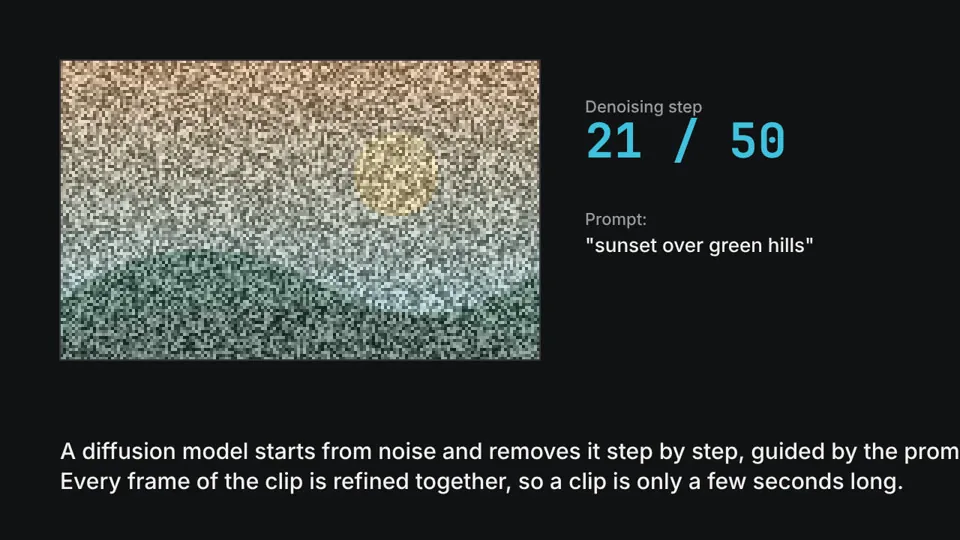
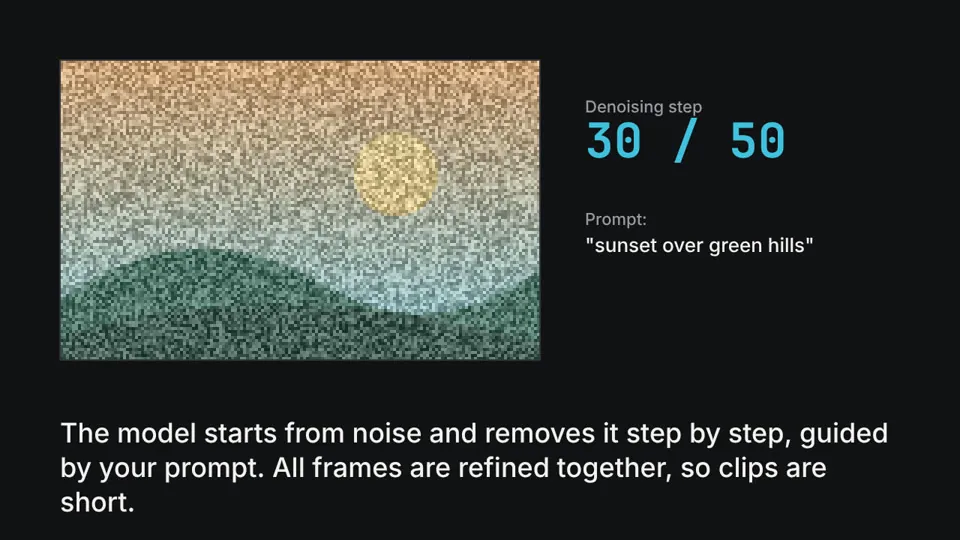
Veo, Runway, Kling and Gemini Omni make footage. Google's Veo 3 uses latent diffusion, the standard method behind today's image, audio and video generators. It starts with random noise for the whole clip at once (every frame, plus the soundtrack) and removes a little of that noise at each step, steering what's left toward your prompt. Veo 3 does this to the sound and the picture together, so the sound of a footstep lands on the frame where the foot hits the ground.
Text comes out unreliable because the model draws shapes that look like letters instead of typing the characters you gave it. Each run also starts from new noise, so the same prompt gives you a different clip every time.
Step through the noiseTry it
Denoising step
/ 50
Prompt: “sunset over green hills”
An illustration that blends noise into a finished picture. A real model works on a compressed version of the whole clip and its in-between steps look stranger, but each step does the same job of removing a little noise.
Choosing
Which one to use
Choose by what the video has to show.
If the video needs
Use
Why
Your product's screens, a dashboard, real numbers
Code-rendered
Exact, and you can fix one number without redoing the rest
Headlines, captions or prices on screen
Code-rendered, or add the text in an editor
Generators misspell
A scene you can't film, like a city at dawn
Generated
Looks filmed
People
Generated, or an avatar tool for a presenter
Code can't draw realistic people
Many versions: one per language, customer or quarter
Code-rendered from data, or an avatar tool for presenter videos
Change the inputs and render again
A short social clip with your logo
Generated, logo added in an editor
Footage from the generator, exact branding from you
Generated video
Code-rendered video
Looks like
Filmed footage
Motion graphics
Text and numbers
Unreliable
Exact
Changing one word
Generate the clip again
Edit one value and render again
Same input twice
A different clip each time
The same video
Length of one run
Seconds: Veo 3.1 makes 4, 6 or 8
As long as you like
Most finished videos use both. A launch video can open on a generated shot and cut to a product screen built in code, with your real numbers. Remotion can also play a generated clip inside one of its scenes. Newer generators can manage a word or two, so a one-word sign may come out right, but a pricing table won't.
What you can do with avatar videos
Avatar tools such as HeyGen and Synthesia turn a script into a video of a presenter speaking it, with a generated voice and matching lip movement. You can use a stock presenter, or record a short clip of yourself and get an avatar that looks and sounds like you. Marketers use them for:
Training, onboarding and product update videos that you change by editing the script instead of reshooting.
Translating a video you already have. HeyGen translates into more than 175 languages and keeps the speaker's voice. Synthesia also translates videos made elsewhere, with optional lip sync and a glossary that keeps product names the same.
Personal sales videos: record yourself once, then make a version for each prospect.
Sales practice. Synthesia's Roleplay Sessions let reps rehearse a call with an avatar that pushes back, then score how it went.
Viewers can usually tell the presenter is generated. That's fine for training and internal updates, and a poor fit for a launch or anything where people need to trust a real person. Only make an avatar of someone who has agreed to it.
Worked examples
Three examples
Worked example 1 · A product explainer
A 23-second explainer, built from code
Built in a Claude Code session on 7 November 2026, the same way Remotion and Claude Motion work. The session couldn't download packages, so the rendering code was written manually instead of using Remotion. The steps are the same.
The finished video: 23.5 seconds, 1280×720, 30 fps, 1.1 MB, no sound.
Write the brief in one sentence. Explain the difference between generated and code-rendered video in under 30 seconds, readable on a phone with the sound off.
If the brief needs two sentences, you probably need two videos.
Plan the scenes in frames. Title for frames 0–74, a diffusion scene to 284, a code scene to 494, a comparison table to 704.
The renderer counts in frames, so the timing you plan is the timing you get.
Write the video as one function.render(frame) clears the canvas, finds the scene the frame belongs to and draws it.
Frame 300 looks the same on every run, so fixing one scene can't break another.
Render and encode. A script drew all 705 frames in 7.1 seconds, and FFmpeg, a free video tool, turned them into an MP4 that plays in browsers and on phones.
Review it by looking. The first version rendered without a single error. A contact sheet (one frame per second) and stills at phone width still found four problems.
Problem in version 1
Cause
Fix
The first frame was blank
The title faded in from frame 4, and players use frame 0 as the thumbnail
Title visible from frame 0
A caption ran off the edge
Line breaks typed manually; the first line was wider than the frame
Captions wrap in code, by measuring the text
Scenes too short to read
The comparison table holds 32 words and was on screen for 3 seconds
7 seconds per scene; 16 seconds became 23.5
Text about 9 px tall on a phone
30 px text in a 1280 px frame, shown 390 px wide
36 px text, shorter sentences
Version 1 at 5.0 s: the caption is cut off.
Version 2 at 6.0 s: wrapped and larger.
One more problem got past both versions. The fact check for this page found that the video's table said generated clips run “4–10 s,” but Runway's Gen-4.5 goes down to 2 seconds. The label now reads “2–10 s per clip,” and the video above is the third render.
Worked example 2 · An opening shot
A 15-second opening, generated
A launch video needs 15 seconds of a city waking up before the product appears, as one continuous shot with no text. This is a plan built on Google's published limits; no clip was generated for this page.
Pick the tool. A generator, because the shot needs footage and no exact text.
Work out the length. Veo 3.1 makes clips of up to 8 seconds, and in the Gemini API each extension adds 7. One clip plus one extension gives you 15.
Ask for 15 seconds in one prompt and you get 8, so plan the extension from the start.
Write the prompt like a camera brief. Shot and camera move first, then subject, action, setting, light and sound.
Wide shot, slow push-in. A city street at dawn, shop shutters
rising one by one, a cyclist crossing frame left to right.
Soft blue light turning gold, light mist.
Sound: distant traffic, a shutter rattling.
Keep it to one subject, one action and one camera move. Prompts with three things happening tend to get half of them.
Generate four, keep one, extend it. If the cyclist is wrong but the light is right, extend the clip you like instead of writing a new prompt.
A new prompt starts from new noise and throws away the parts that were working.
Add words in the edit. Put the product name on in an editor, never in the prompt.
Worked example 3 · Training in five languages
Reason it through
Your HR team needs the same three-minute benefits walkthrough for staff in five countries, updated every January. Before you open the answer, decide which tool you'd use and what you'd check.
Show the reasoning
An avatar tool. The video is internal, it's information rather than persuasion, and you need five versions. Each January you edit the script and generate it again, which is cheaper than a reshoot. Make the English version first, then translate it, and add your benefit and product names to the tool's glossary so they don't get translated.
Then have a native speaker watch each language. People will probably notice the presenter is generated, and for a benefits walkthrough that's fine.
You're launching a new usage dashboard and need a 30-second video for the launch post and the product page. Below, it's made with each kind of tool, then with all three cut together. Before you open them, decide which one you'd post.
With motion graphics, in Claude Motion
What you ask for
Make a 30-second launch video for our new usage dashboard from the attached screenshots and numbers. Open on the headline, show three features with the real numbers, and end on our logo. 16:9, readable with the sound off.
What you get
An animated walkthrough of the dashboard, with every number matching your screenshots and a clean end card. When finance changes a figure the night before, you edit one value and export again. There's nothing in it that looks filmed, and no people.
Use this alone when the product is the story: a feature launch, release notes on LinkedIn, the video on the product page.
With real-looking footage, in a generator
What you ask for
Wide shot, slow push-in. A small team leaning in around a laptop in a bright office. Morning light. Sound: low chatter, a laugh.
What you get
An eight-second clip, Flow's longest, that looks filmed. The laptop screen shows something chart-shaped with numbers that don't exist. To fill 30 seconds you need several clips or extensions, and the people's faces drift a little between them.
Use footage for the mood around the product, like an opening shot or a teaser, never for the product itself. Put the product name on in an editor.
With a face, in an avatar tool
What you ask for
A 30-second script, written the way you'd say it, and a presenter: a stock one, or the avatar of someone on your team who has agreed to it. Upload a screen recording of the dashboard to play behind them.
What you get
A presenter walking through the launch, accurate and quick to make, in every language your sales team needs. Viewers can usually tell the presenter is generated, and on a public launch, where people are deciding whether to trust you, that costs you.
Use the avatar version for sales enablement and regional teams. For the public launch, record the real person on a phone instead.
With all three, cut together
What you do
Generate the opening shot of the team in Google Flow and trim it to about five seconds. Keep screens and words out of the prompt.
Build the dashboard walkthrough and the end card in Claude Motion, in the same 16:9 shape as the opening.
Cut them together in an editor. Claude Motion can send its video on to Descript or Adobe for editing, and in Remotion you can drop the generated clip into a scene and skip the editor.
Make the avatar version separately, for the sales team, from the same script.
The opening has to look filmed and the dashboard has to show exact numbers, and no single tool does both.
The video is finished and goes live in an hour. How do you QA it?
Ship it. It rendered without errors.
What happens
The LinkedIn preview shows a black rectangle, because the title fades in after frame 0.
A clean render only means the code ran. Players use frame 0 as the thumbnail, so look at it.
Watch it on your laptop.
What happens
It looks great. On a phone, where most people will see it, the captions are 9 pixels tall.
Check it on the screen your audience uses.
Check the first frame and a still from every scene on a phone, sound off.
What happens
Ten minutes, and you catch the blank thumbnail and a caption running off the edge before anyone else does.
These are the checks that found four problems in worked example 1.
Hosting
Where to host your video, and how AI helps
Pick the host by where people will watch. The big hosts now use AI to caption your video when you upload it, and some translate and describe it too, so the host you pick decides how much of that work is left for you.
Where it plays
Host it on
What AI does there
LinkedIn and other social feeds
Upload the MP4 to each platform so it plays in the feed
It varies by platform. Put the captions in the video itself so it works with the sound off
Tutorials and demos people search for
YouTube
Automatic captions, and auto dubbing in 27 languages, open to every channel since February 2026. You can upload your own dubs instead or turn dubbing off
Your website and product pages
Wistia or Vimeo
Wistia transcribes and captions every upload on every plan, writes chapters, titles and descriptions, and translates and dubs on paid plans. Vimeo auto-captions in 99 languages on paid plans and dubs translations in the speaker's cloned voice
A short clip on your own site
An MP4 file on your site, like the explainer on this page
None. You add the captions and the poster image yourself, and an AI assistant can write both
What to ask your AI assistant to do
Write the title and description from the script, and chapters for videos long enough to need them. A code-rendered video already has a scene list with timings, so the chapters come straight from it.
Write the caption file (.vtt or .srt) from the script and the scene timings, then play it against the video to check the timing.
Make the other sizes. For a code-rendered video, ask for a 9:16 version and render again, so the layout is rebuilt for a phone instead of cropped. For footage, Claude Code can crop and compress it with FFmpeg.
Pick the thumbnail. Ask for a poster image from a frame that shows the title, since many players show the first frame if you don't set one.
Mark up the page for search, if the video has a page of its own. Google only indexes a video on a watch page, where the video is the main reason for the page, so a blog post or product page where the video supports the text won't count. Ask for VideoObject structured data with a name, description and thumbnail unique to that video.
Attached are the script and scene list for a [N]-second video.
It will be hosted on [YouTube / Wistia / Vimeo / our site] and embedded at [page URL].

Write:
1. A title and a two-sentence description
2. Chapters with timestamps, taken from the scene list, if the video is long enough to need them
3. A WebVTT caption file from the script, timed to the scenes
4. VideoObject structured data for the page. Ask me for anything you need, like the upload date and the video file's URL.

Use only what's in the script. Flag any caption line that's too long to read on a phone.
Whatever the host, watch the uploaded version once on a phone. Hosts re-encode what you upload, and auto-captions can mishear your product name, so read them before you publish.
Takeaway
What you can do now
You can look at a video brief and send each part to the right tool: exact words and numbers to code, footage to a generator, presenter videos to an avatar tool. You can make a first explainer with Claude Motion or Remotion, QA it on a phone, and pick a host whose AI handles the captions and translations. Next, how to give your AI assistant your marketing knowledge.
How to
How to make your first AI video
If you're on a Claude Team or Enterprise plan, start with Claude Motion. If not, start with Google Flow for footage, or Remotion if you're comfortable in a terminal.
Make an explainer with Claude Motion
On a Team plan, Motion is already on. On Enterprise, an owner turns it on under Organization settings > Artifacts.
In a chat, choose Output, then Motion, in the message box, or type /motion.
Attach the report, data or screenshots, and say who will watch, where it plays and roughly how long it runs.
Ask for the scene list and every line of on-screen text first. Fix the words before it builds.
Change things by asking (“slow down the second scene”) or in the editor.
Choose Export, then MP4, and watch the file on your phone.
Make a Motion animation from the attached [report / data / screenshots].

Audience: [who watches it]
Where it plays: [e.g. all-hands slide, product page, LinkedIn]
Length: about [N] seconds, [16:9 / 9:16]
It must make sense with the sound off.

Before building, show me:
1. A scene list with timings
2. Every line of on-screen text, word for word
Use only numbers and screens from the attachments. If something I'd need is missing, ask instead of inventing it.
Done when the exported MP4 plays on your phone, the first frame works as a thumbnail, and every number matches its source.
Make one with Remotion in Claude Code
Remotion is free for individuals, non-profits and companies of up to three people. Bigger companies need a Company License.
Run npx create-video@latest and pick a template. Let it install Remotion's agent skills.
If the skills didn't install, run npx skills add remotion-dev/skills.
Preview with npx remotion studio.
Render with npx remotion render. It asks which composition to render and saves the file in the out folder.
In this Remotion project, build a [N]-second video at [1920×1080, 30 fps].

Scene plan:
[time] – [what's on screen] – [on-screen text, exact]

Assets are in public/: [list]. Use them; don't draw substitutes for product screens.
Fonts and colours: [list].

1. Show me the composition and scene components you plan to create.
2. Build them.
3. Render a still of the middle frame of every scene and show me.
4. Check no text is cut off and every line stays on screen long enough to read twice.
5. Render the MP4 only after I approve the stills.
Make a generated clip in Google Flow
Pick the mode: text to video, ingredients to video (up to three reference images, 8-second clips), or frames to video (a first and last frame).
Write one shot as a camera brief. Generate four versions.
For a longer shot, extend the best clip, or cut several together in the scene builder.
Download it, then add text and logos in an editor.
Make an avatar video
Write and approve the script first. Write it the way you'd say it out loud.
Pick a stock presenter, or record a short clip to make your own avatar. Get consent from anyone whose face or voice you use.
Generate the video, then translate it into the languages you need. Add product names to the glossary if the tool has one.
Have a native speaker watch each language before it goes out.
Which tool does what
Tool
Makes
Access
Limits worth knowing
Claude Motion
Animated explainers, charts, walkthroughs
Team and Enterprise, in beta
No footage or people; no published maximum length
Remotion + Claude Code
Any code-built video, including batches from data
Free up to 3 people; Company License above
Needs a Node.js project
Veo 3.1
Footage with sound
Flow, the Gemini app, the Gemini API
4, 6 or 8 s per clip; 8 s with reference images; extend adds 7 s
Gemini Omni Flash
Footage, and edits to existing video
Gemini app, Flow, YouTube Shorts Remix, YouTube Create, Gemini API
3 to 10 s per clip at launch
Runway
Footage (Gen-4.5); edits to footage (Aleph 2.0)
Paid plans, priced in credits
Gen-4.5: 2 to 10 s at 720p. Aleph 2.0: clips of 2 to 30 s
HeyGen, Synthesia
Presenter videos, translation, personal avatars
Paid plans; HeyGen has a limited free plan
Viewers can usually tell the presenter is generated
OpenAI closed the Sora app on 26 April 2026 and shut down the Sora API on 24 September 2026.
QA checklist
Watched on a phone with the sound off.
Every line can be read at normal speed, and nothing is cut off.
Every product screen is real, or labelled as a mock-up.
Numbers and claims match their source.
The first frame works as a thumbnail.
In generated clips, faces, hands and objects stay the same from shot to shot.
Sources and fact check
Video tools checked 7 November 2026 against vendor documentation; avatar features checked 9 November 2026 on HeyGen's and Synthesia's own pages; hosting features checked 13 November 2026 on YouTube's, Wistia's, Vimeo's and Google's own pages. The 7 November check made four details more precise and caught two errors in worked example 1, both fixed above.